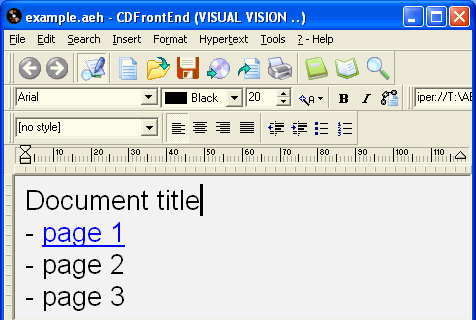
Click here for getting started. Or click on the image below to get Help (this is a visual manual!!).  
Click here for the step by step PDF manual (the fastest way for starting - ZIP compressed)
Additional Support: tutorials, frequently asked questions, Web Forum, or email / fax us (USA) 909-498-8755. 
Back to previous page Read only / Editor Create new hypertext / presentation file Open an existing presentation/hypertext or import pages Save current presentation/hypertext Export pages Print current page... Display cover or summary page... Search Change the font of selected block, or from current cursor position... Change the color of selected text block, or from current position... Change the size of current text block, or from current position... Main menu Apply bold or italic to selected text block, or from cursor position... Insert links Styles Justify, Left, Right, Center: change the alignment of current paragraph Increase or reduce indent of current paragraph... Transform current paragraph in a list, with bullets or numbers... With the ruler you can define left and right margins, and first line... The edit window Frameset management in CDFrontEnd Frameset management in CDFrontEnd Create CD in temporary folder  
Import pages Images Tables Classic Copy, Cut, Paste and Undo buttons... The page number box Add a new page to the document / presentation / hypertext Edit page properties Insert sound or animation, video, voice, MPEG, MP3, MOV, AVI, WAV... Insert floating frame Enable / disable frames view in the editor Keyword assignment Advanced frameset management Insert form elements  
 
With the main menu you can access all the CD FrontEnd functions: 
 
File 
New hypertext 
New from... 
Open... 
Import pages...** 
Import from database / CSV... 
Add new page... 
Search file... 
Save all 
Save as... 
Save as template... 
Create autorun CD in temporary folder... 
All pages... 
Printer setup... 
Margins setup... 
Print...** 
Print current page 
Print all 
Exit 
 
Edit 
Undo 
Cut 
Copy 
Paste 
Paste page from...** 
Select all 
 
Search 
Search... 
Search / Replace... 
Search again in page 
Repeat in the hypertext 
Search by keyword...** 
Boolean Search... 
 
Insert 
Symbol... 
Text files... 
Image / map... 
Image gallery / photo album... 
Table... 
Floating frame... 
Animation / sound... 
Flash *** 
Forms *** 
Start form marker... 
Form element... 
Button... 
Page functions 
Slides... 
Open / close windows...** 
Contents... 
Annotations...** 
Autoreferenced link** 
New page... 
Anchor 
Link... 
Special link...** 
Quick special link to 
Link to shopping cart... *** 
 
Format 
Font... 
Superscript / Subscript 
Normal 
Superscript 
Subscript 
Styles... 
Paragraph style... 
New style... 
Reformat 
Link properties 
Follow link 
Page properties...** 
Load frameset layout 
Advanced frameset manager...** 
Header and footer...** 
 
Hypertext 
Current hypertext properties 
Passwords...** 
Keywords...** 
Cover 
Contents 
Read only 
Show frames 
Previous page 
Next page 
Page +1 
Page -1 
Go to page 
Select page from preview... 
[list of last visited pages] 
Delete pages... 
Slides... 
Hypertext search... 
Link diagram... 
Predefined page order - TOC... 
Images - files - link archive and erase... 
All hypertext pages... 
 
Tools 
Page spell check... 
Hypertext spell check... 
Toolbars... 
Windows... 
Program options... 
 
Info... 
Show demo... 
Examples (in editor)... 
Help... 
Other Visual Vision products (online)... 
Contact us (online)... 


To paste a screen shot of another application, run the application, press ALT+PrtScrn, then SHIFT+INS in CDFrontEnd. Templates? "File" then "New from..." or "Edit" then "Paste page from...". 
To change / customize the logo / splash screen image***, just edit the file "gold.gif" inside the "FrontEndFiles" folder (or the CD root). If you want to insert a JPG, just insert a "gold.jpg" file. The size is 404x 288 pixels. 
 
*** GOLD edition only. 
 
 
CDFrontEnd Manual - Main menu - Search - What is CD Front End? - Overview - Buy / register - Frequent questions / FAQ - Tutorials - CD passwords - protect presentation - Get CDFrontEnd electronically - Get the CDFrontEnd CD -  User's Web forum - CDFrontEnd Web site 
 
CDFrontEnd - Create autorun CD presentations with ease.  http://www.CDFrontEnd.com 
(C) Copyright 2001, 2006 Visual Vision. All rights reserved. 
Since 1996, leader in hypermedia software - ASP member - ESC member 
 
Other easy tools from Visual Vision: 
CD Web catalog software HyperPublish: create a product catalog, an hypermedia CD, a Web Site 
create website 1site: create a professional Web site, business ecommerce Website 
Web site software EasyWebEditor: create personal Internet pages, create your Web site in minutes 
ebook software EBooksWriter: create an ebook with ease! 
manual software, documentation PaperKiller: create a manual and/or Html Help, a guide, reference manuals 
helpfile software, create online documentation RoboAuthor: manage software documentation, Helpfile, CHM 
 
Leader in auto run CD software - CD presentation catalogue brochure business card password print copy protection 
CD FrontEnd software makes it easy to write, protect and distribute any kind of info on a protected autorun CDROM! Professional brochures, cd business cards, catalogs, manuals, depliant, ebrochure, emanual, ecatalog, products items parts catalogues. You can run any kind of external file, too... PDF, PowerPoint, Word, Autocad... It is ok for content rich business brochures, art show catalogs, collections, guides, tourism and travel books, also with audio, video, animations, flash, mpeg wmv avi mp3 and much more... The perfect visual auto run / autoplay / autostart / autoinstall CD ROM presentation software! Free lite edition available.